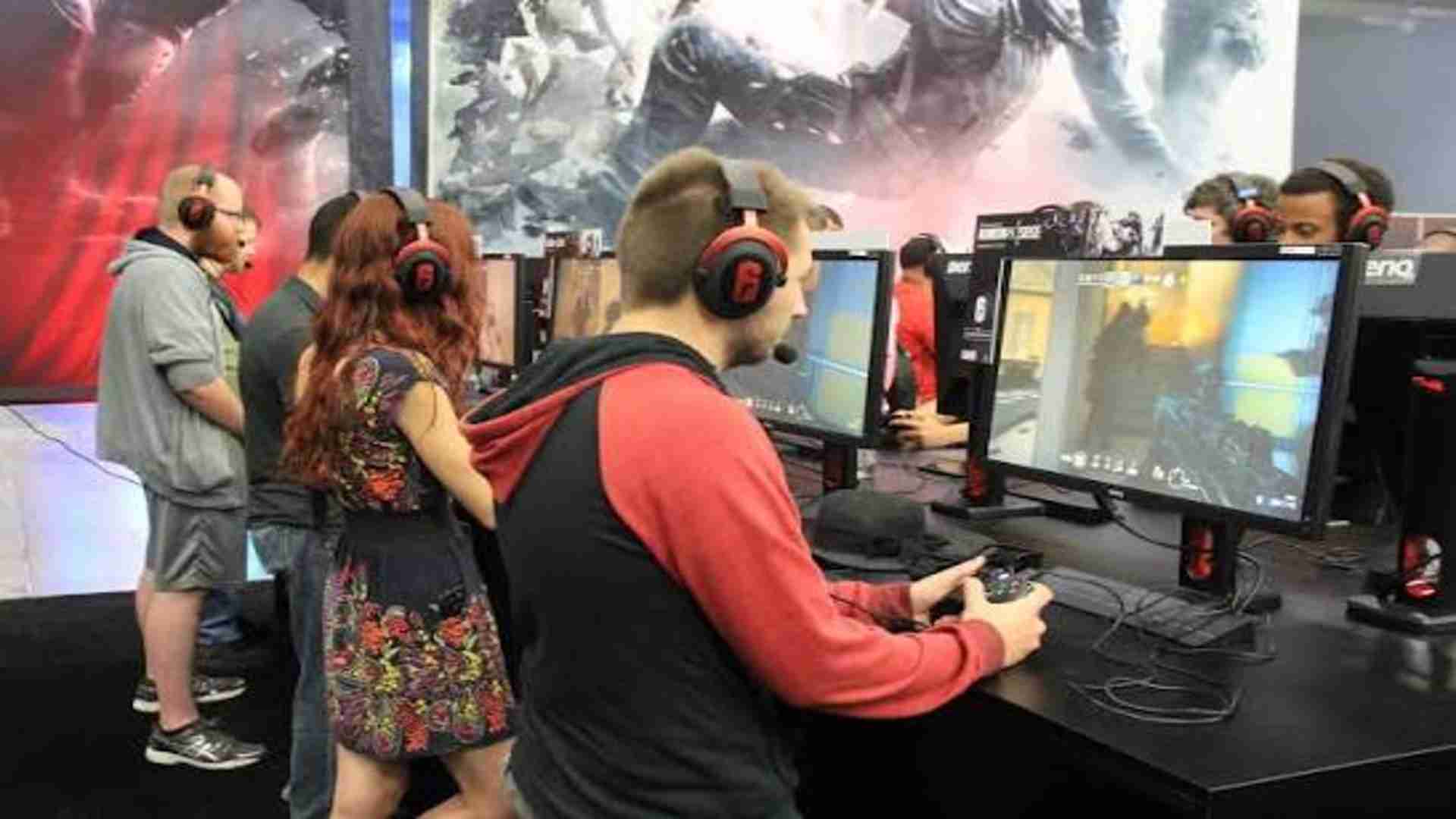
Launching into the neon-drenched streets of Night City is an exhilarating prospect, but encountering an immediate crash to desktop can completely ruin your gaming session. Players frequently report instances where the application flatlines before the main menu even loads. Pinpointing the exact bottleneck within your hardware or software configuration is essential for stabilizing your installation quickly.
Verify the Integrity of Game Files
Corrupted or missing system data is one of the most common catalysts behind immediate software instability. Over time, unexpected system shutdowns or interrupted network updates can damage core operational files. Executing a comprehensive verification process fixes these hidden anomalies without requiring a full reinstallation.
For players using the Steam launcher, right-click the title in your library network and select the properties menu option. Navigate directly to the installed files section and trigger the automated verification mechanism. The digital storefront client will scan your local directories and automatically reacquire any corrupted parameters.
Update Graphics Drivers and Software
Running obsolete display drivers frequently triggers immediate rendering conflicts during initial engine initialization. Both NVIDIA and AMD routinely distribute optimized code architectures specifically engineered to manage heavy graphical loads. Installing the latest official release ensures complete compatibility with complex architectural demands.
When performing updates, utilizing a clean installation method removes residual temporary preferences that might cause conflicts. You should also temporarily disable background overlay utilities like Discord or GeForce Experience, as these programs frequently interfere with startup animations. Ensuring your operating system has received all critical security patches also improves runtime performance.
Manage Modifications and Clear Cache Files
While installing community modifications dramatically enhances visual fidelity, obsolete script parameters frequently break after official game patches. If you utilize external enhancements, completely removing the mod folders is a vital troubleshooting step. Testing a vanilla installation confirms whether secondary scripts are responsible for the startup failures.
Additionally, clearing the localized configuration cache eliminates corrupt temporary logs that accumulate over extended gameplay periods. Navigating to the hidden AppData directory allows you to safely delete old graphics cache folders. This forces the game engine to build fresh hardware configurations upon the subsequent launch attempt.
Adjust Administrative Privileges and Drive Settings
Restricted user access permissions can prevent the execution parameters from accessing essential storage sectors on your PC. Granting the main application administrative privileges bypasses these security barriers smoothly. Right-click the primary executable file, enter the compatibility tab, and check the option to run as an administrator.
It is also highly recommended to install the game exclusively on a high-speed solid-state drive rather than a traditional mechanical hard drive. Modern open-world assets require immense read speeds that older storage units simply cannot sustain during initial engine loads. Upgrading your storage allocation directly addresses persistent loading assets failures.